Check a custom LEGO project against pieces you own
For a project with a parts list, BrickzBack can compare required quantities with loose stock you have marked available. The result is scoped to that project and its recorded parts, not a promise to find other builds.
Open the custom project, review its parts and quantities, and run the available-stock comparison. Inspect the shortages and confirm any allocation you want to make.
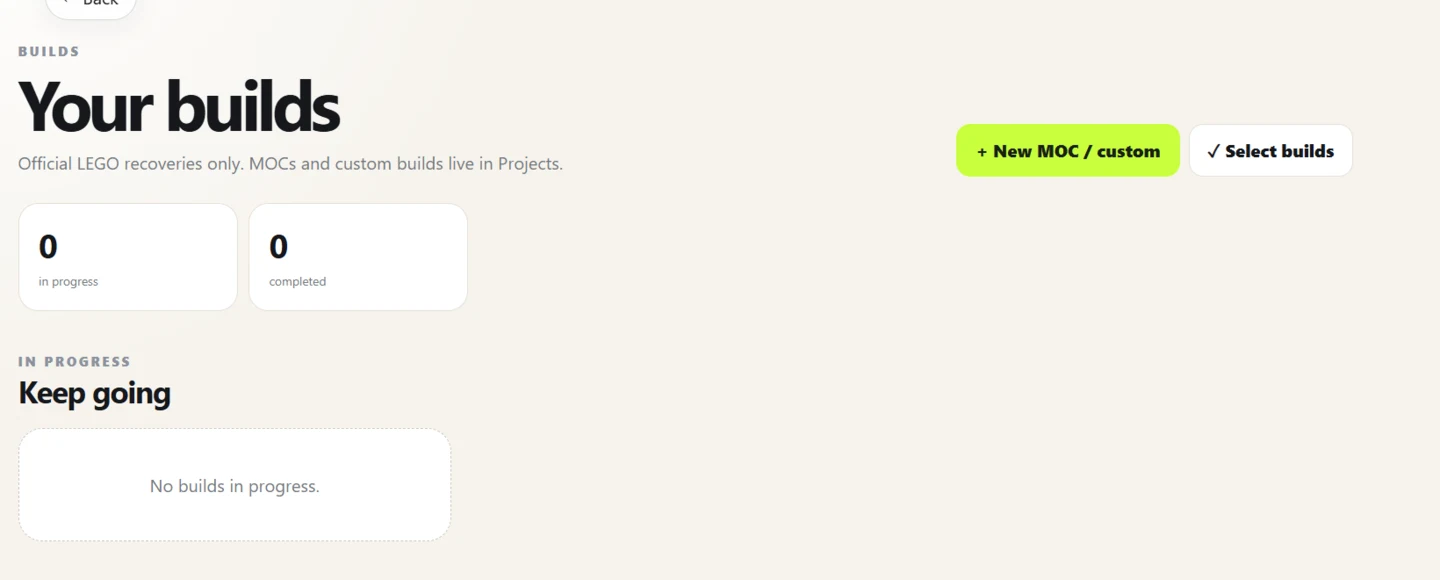
Start with a project and its parts list
Create or open a custom project that has identifiable parts and quantities. Check the list for missing or incorrectly mapped lines before comparing it with your collection.
Project requirements and owned stock answer different questions: the project says what you intend to use, while the collection says what you have recorded. Keeping both visible makes a shortage easier to understand.
- Open the project and check its recorded parts and quantities.
- Compare its requirements with loose pieces marked available.
- Review shortages and confirm any piece allocation you choose.
Review exact matches and remaining quantities
The comparison is based on item identity, colour and available quantity. A visually similar part is not necessarily interchangeable; verify substitutions yourself and update the project only when they are intentional.
A piece allocated to one project should not also be assumed available for another. BrickzBack keeps allocation actions explicit so you can decide how to use shared stock.
Know what the project check does not do
The project check does not calculate every possible design you could make, inspect a rendered model, or turn an unrecognised part into a confirmed inventory record. It works from a project parts list you have supplied or entered.
If the project does not yet have a parts list, import a compatible XML parts list or add the requirements first, then review the result.
Frequently asked questions
Can BrickzBack check a custom project against my loose parts?
Yes. Open a project with a parts list and compare it with loose pieces marked available.
Does the check reserve every matching piece?
No. Review the quantities and confirm any allocation; the comparison alone does not commit stock.
Can I check a model without a parts list?
The comparison needs project parts and quantities. Add them or import a compatible parts-list XML file first.
Put the workflow into practice
Use the current BrickzBack workspace to review your own records. Confirm identities and changes before relying on a parts list or value.
Create a BrickzBack account