START HERE
New life for bricks you already own.
Search by set number or name, then open its exact inventory.
01→
Found an incomplete set in the loft? Search its set number, work through the exact parts and colours, and use the bricks already sitting in your tubs to finish the build.
Already have an account? Sign in to BrickzBack
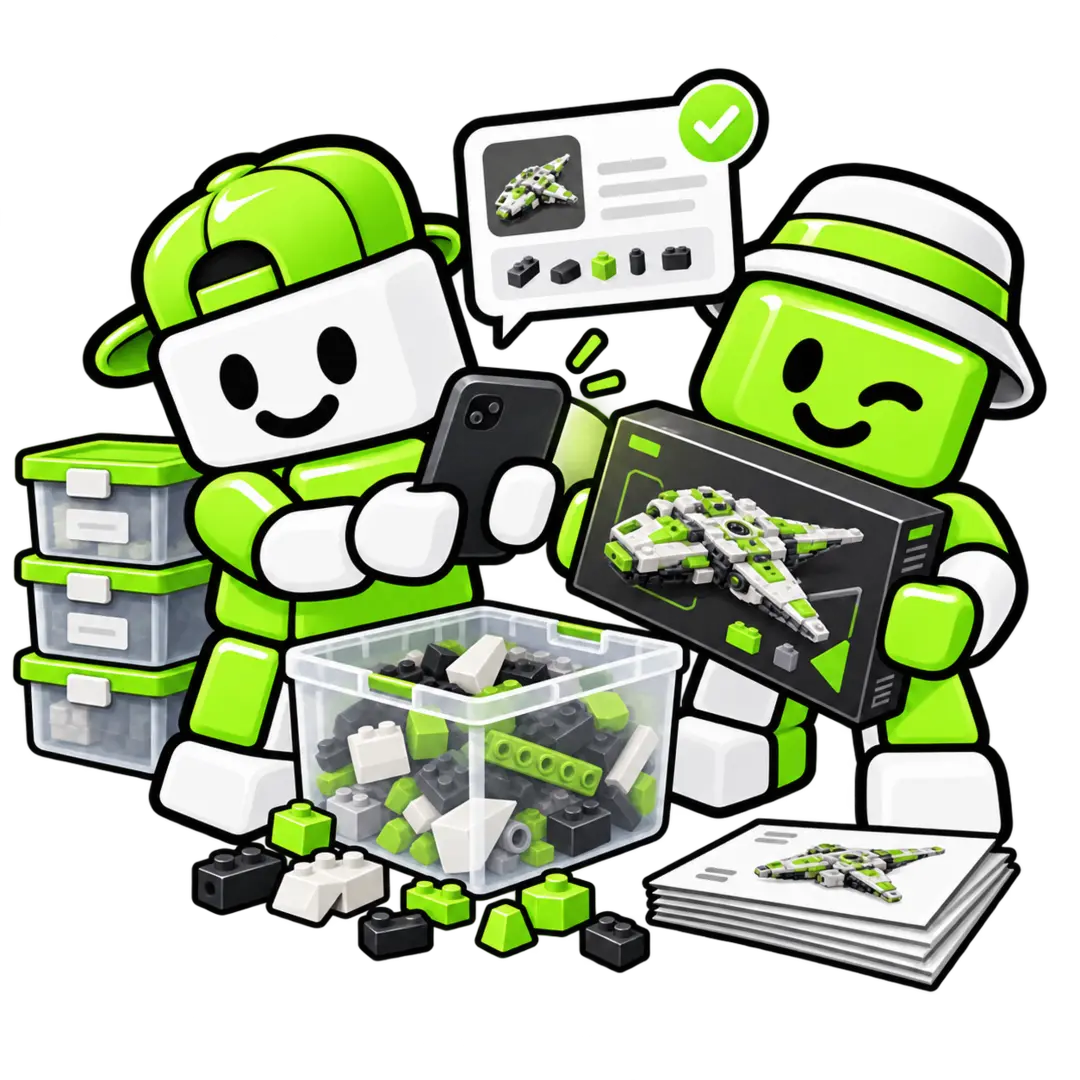
Find the missing piece. Use what is already in the tub.
Search the set, check its inventory, use matching loose pieces when you choose, and keep a clear list of what is still missing.
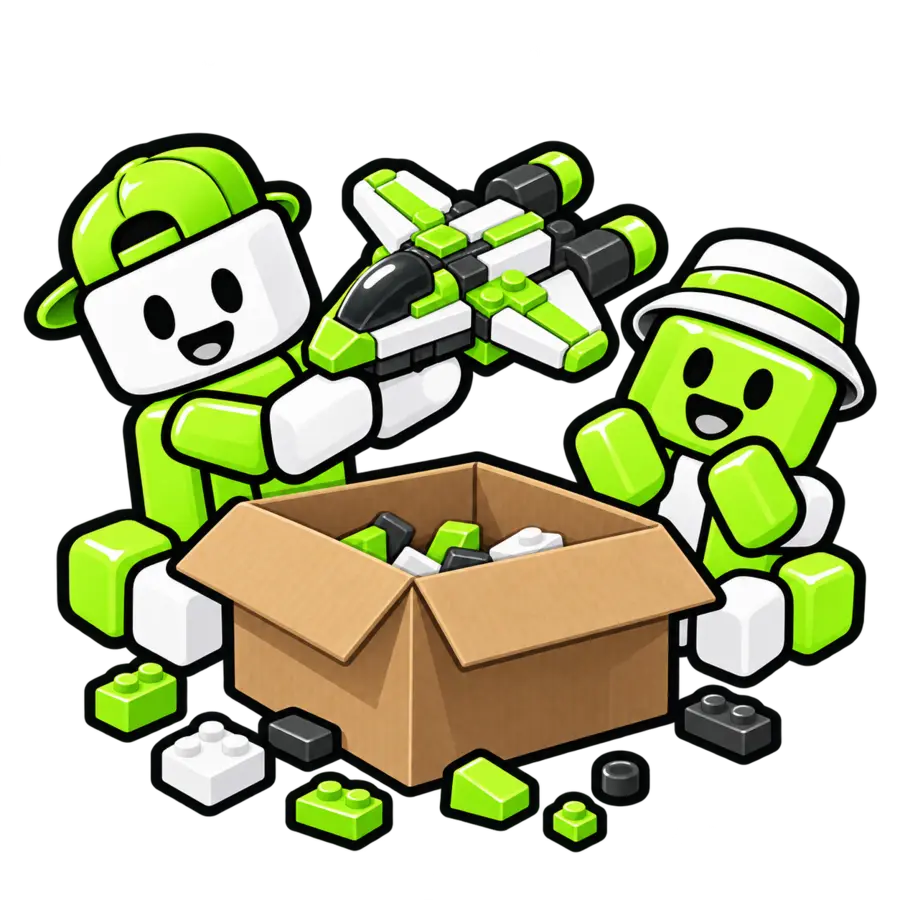
Start with the set you thought was lost. BrickzBack turns a mixed box into a clear recovery workflow.
Search for a set, open its catalogue inventory and choose whether to track progress from zero or compare the selected set with loose pieces marked available. You confirm collection changes.


Search by set number or name, then open its exact inventory.
Review inventory
Choose a recovery mode
Scan it separately and confirm the match yourself.
Explore an illustrative preview of the workspace sections and decisions. It is not a live account or a product screenshot, and it does not change saved collection data.
Search a set, review its exact inventory, choose recovery from zero or compare with available loose pieces, then tick what you find and export only what is still missing.
 BrickzBack
Nothing is added to your collection until you confirm it.
Keep sets, minifigures, loose pieces and wishlist items clearly separated. See at a glance which loose pieces are ready to use and which are already set aside for a build.
View supported value guidance as an estimate, or enter your own value.
Review one selected set or project at a time; no search of every possible build is implied.
Open BrickzBack on a phone or tablet and review available pieces before confirming a collection change.

Record sets, minifigures and loose parts separately from wishlist entries. Loose stock keeps exact part, colour and quantity records.
Compare it with loose pieces marked available. Compatible XML parts lists can be imported into projects, with a clear, step-by-step parts checklist.

Keep wanted items separate from confirmed ownership, and treat supported value guidance as an estimate rather than a sale promise.

Take a photo of a part, set or minifigure. BrickzBack shows candidate matches for you to check. Nothing is added to your collection until you confirm it.
Check identity, condition and what is included before drafting.
Edit the details and amounts you want to use; nothing is published for you.
Enter actual revenue, purchase cost, fees and postage to track saved results.
Trader prepares editable drafts from confirmed details and tracks amounts you save. You choose where to publish and handle the transaction, payment and delivery.
Your builds, collection, values and sale drafts stay connected while remaining clearly separated.
BrickVision suggests matches and value information helps you decide. Nothing enters or leaves your collection until you confirm it.
Use touch-friendly controls and open BrickzBack on your computer, phone or tablet.
Search BrickzBack by set number or name, review the catalogue inventory and track the quantities still needed for that selected set.
Yes. For a selected set, BrickzBack can compare required parts with loose pieces marked available. You decide whether to confirm or allocate a match.
BrickVision suggests likely matches from a photo. Check the candidates and confirm the part yourself before it changes your collection.
No. Trader prepares an editable listing draft from details you have confirmed. You choose the marketplace and handle the sale there.
Sign up once to keep your collection, builds, projects and value history together. After account creation, BrickzBack will guide you through the secure subscription setup when access is required.
Create your account to keep your collection, builds, BrickVision and Trader together on your computer, phone or tablet.