How to import a parts list into a BrickzBack project
A custom project can begin with a supported XML parts list instead of entering every line by hand. BrickzBack turns recognised entries into project requirements that you can inspect and compare with available loose stock.
Create or open the project, import a compatible parts-list XML file, inspect the returned lines and quantities, then correct any entries that need attention before checking your collection.
Prepare the supported input
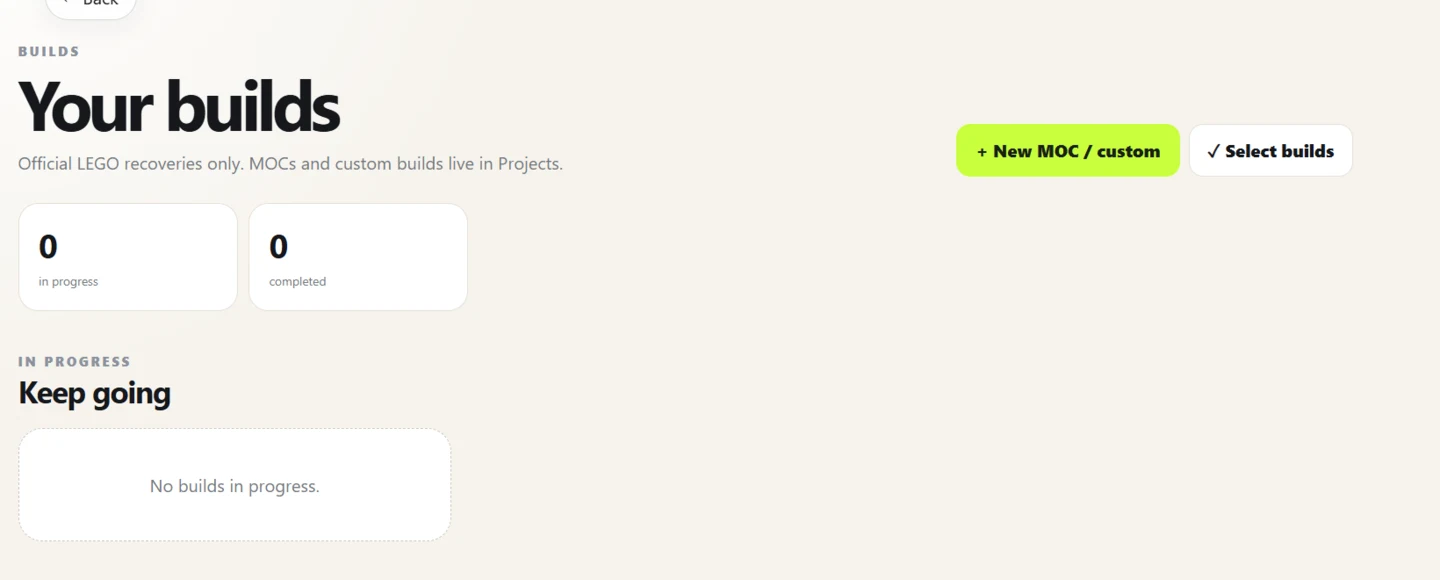
The implemented project import accepts a compatible XML parts list. Choose the project that should receive the requirements and decide whether the import should replace its current parts or add to the existing list.
This is a parts-list import, not a full model-scene importer. It does not promise to preserve a model's geometry, building steps, annotations or unsupported file data.
- Open the intended custom project.
- Select the compatible XML parts-list file and the appropriate replace-or-add mode.
- Review imported lines, part identities, colours and quantities.
Review mappings before allocating stock
The importer resolves catalogue details for recognised part and colour identifiers. Inspect the resulting list and correct anything that did not map as expected before comparing it with your collection.
Replacing a list removes the project's previous part requirements and related progress or allocations. Choose that mode only when you intend to replace those records; add mode preserves existing requirements and adds imported quantities.
Continue with a focused project check
Once the requirements look right, compare the project with loose pieces marked available. You will see the parts still short and can decide whether to commit a match or source it elsewhere.
The import does not confirm physical ownership, guarantee every source-file line was understood, or automatically complete the project.
Frequently asked questions
What file can I import into a project?
The implemented project workflow accepts a compatible XML parts list. Review its lines and mappings after import.
Will import replace my existing project list?
You can choose replace or add behavior. Replacing clears the previous requirements and related project progress or allocations, so select it deliberately.
Does this import a complete 3D model?
No. It imports parts-list requirements, not the model's geometry, steps or other scene data.
Put the workflow into practice
Use the current BrickzBack workspace to review your own records. Confirm identities and changes before relying on a parts list or value.
Create a BrickzBack account